USB-C DisplayPort Alt Mode: How Video Travels Through USB-C
USB-C has become the connector that seems to do everything.
The same small reversible connector can carry USB data, power, DisplayPort video, and — on some devices — Thunderbolt or USB4.
That flexibility is useful, but it also creates a specification problem:
A USB-C connector does not tell you what the port can actually do.
A laptop can have USB-C and support external displays, while another USB-C port may support only data and charging. Even when both ports support DisplayPort, they may not provide the same amount of display bandwidth.
The key technology behind direct DisplayPort video over USB-C is DisplayPort Alt Mode.
The short version
If you only remember a few things:
- USB-C describes the connector and electrical interface, not a single protocol.
- DisplayPort Alt Mode lets a USB-C connection carry DisplayPort video.
- USB-C has four high-speed lanes that can be assigned to DisplayPort, USB data, or a combination.
- A four-lane DisplayPort configuration gives the display link the most bandwidth.
- A two-lane DisplayPort configuration can leave two high-speed lanes available for SuperSpeed USB data, but reduces display bandwidth.
- DisplayPort Alt Mode is not the same thing as USB4 DisplayPort tunnelling, even though both can deliver DisplayPort video through a USB-C connector.
- For buyers, the important specification is the actual DisplayPort capability of the port, not simply the words “USB-C”.
USB-C is the connector, not the video standard
This is the first distinction to get right.
USB-C is a connector and connection system. It defines the physical connector, cable interfaces, signalling arrangements and mechanisms used to negotiate capabilities.
It does not mean that every USB-C port supports the same protocols.
A USB-C port might support:
| Capability | What it can mean on a USB-C port | Does every USB-C port support it? |
|---|---|---|
| USB data | USB 2.0, USB 3.x, USB4 or other supported USB modes | No |
| Display | DisplayPort Alt Mode or DisplayPort carried through USB4 | No |
| Power | USB Power Delivery for charging or power input/output | No |
| Thunderbolt | Thunderbolt 3 or 4, depending on the implementation | No |
That is why a laptop specification saying simply “USB-C” is almost useless if you are trying to determine external-display capability.
You need to know what protocols and link capabilities are actually implemented.
DisplayPort Alt Mode
VESA introduced DisplayPort Alternate Mode on USB Type-C in 2014. The idea was straightforward: use the high-speed signalling capability already present in the USB-C connector to transport DisplayPort.
This means a laptop can connect directly to a DisplayPort monitor without having a full-size DisplayPort connector.
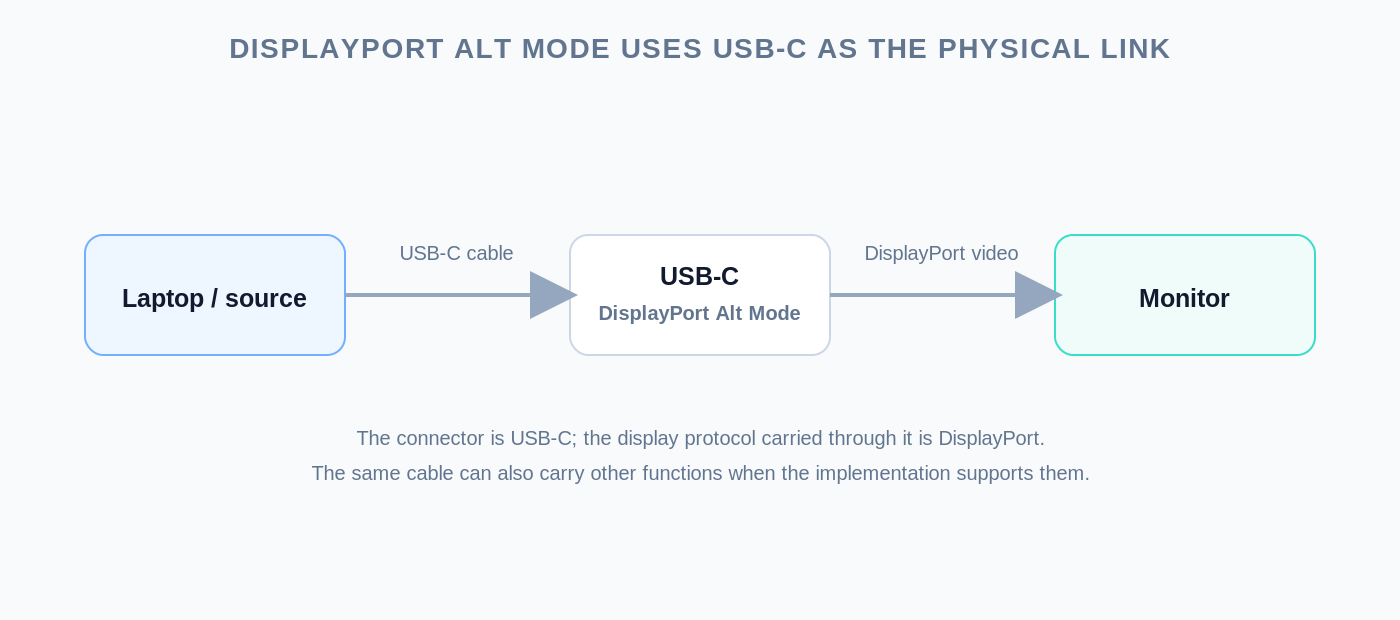
The important conceptual distinction is:
USB-C is the physical connection. DisplayPort is the display protocol being transported.
VESA’s original Alt Mode specification allowed the USB-C connection to use one, two, or all four high-speed lanes for DisplayPort. The remaining high-speed lanes could remain available for USB data.
That flexibility is one of the reasons USB-C is so useful for laptops and docks.
What are the four high-speed lanes?
A USB-C connection has four high-speed differential lane pairs available through its SuperSpeed-capable pins.
For DisplayPort Alt Mode, those lanes can be reassigned to carry DisplayPort signalling.
The simplest case is to use all four lanes for DisplayPort.
That gives the display connection the maximum DisplayPort bandwidth available from the implementation.
But there is another possibility: use two lanes for DisplayPort and retain two lanes for high-speed USB data.
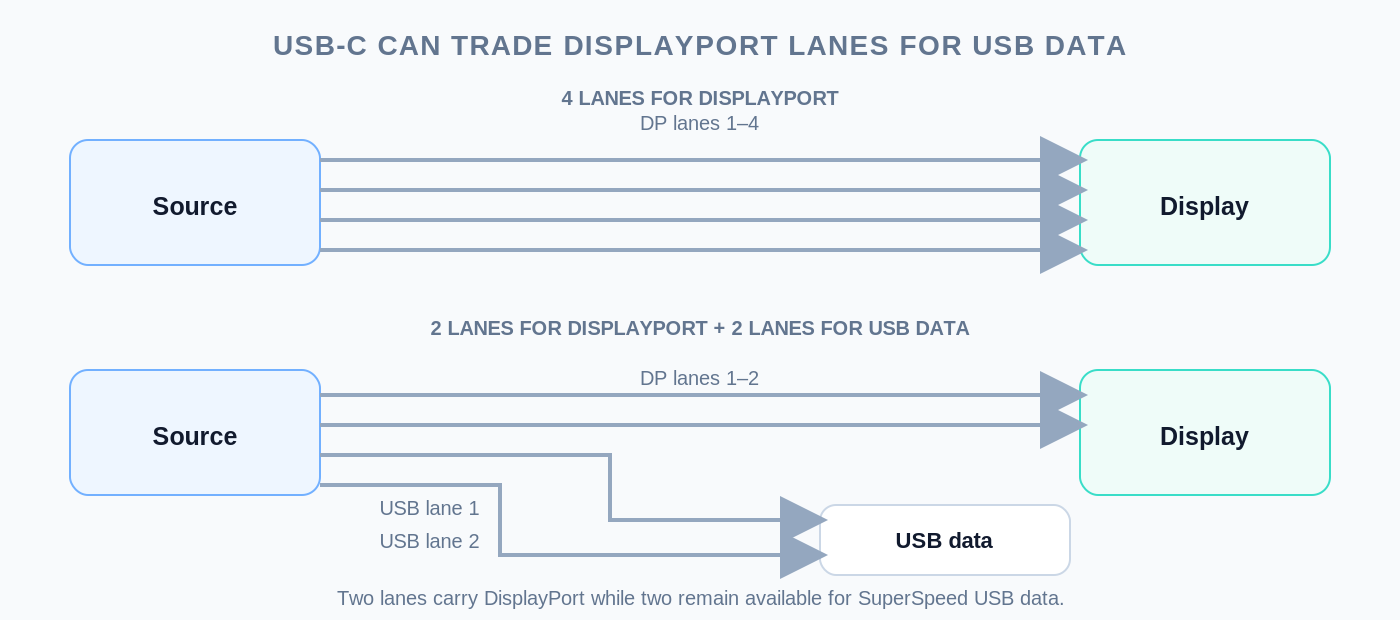
This creates an important trade-off.
Four lanes for DisplayPort
With all four high-speed lanes assigned to DisplayPort:
- the display link gets the maximum available lane capacity;
- high-resolution and high-refresh-rate modes have more bandwidth available;
- there is no equivalent two-lane SuperSpeed USB data path using those same high-speed lanes.
Two lanes for DisplayPort
With two lanes assigned to DisplayPort:
- two high-speed lanes remain available for SuperSpeed USB data;
- the DisplayPort link has less bandwidth;
- some demanding display modes may no longer be possible without compression or other techniques.
VESA explicitly documents two-lane USB-C DisplayPort configurations and notes that this arrangement is common for USB-C DisplayPort Alt Mode.
Why does this matter so much?
Consider two otherwise similar laptops.
| USB-C configuration | DisplayPort side | What it means in practice |
|---|---|---|
| Four DP lanes | Maximum DisplayPort lane capacity for the implementation | Best option when external-display bandwidth is the priority. |
| Two DP lanes + two USB lanes | Reduced DisplayPort capacity | Allows high-speed USB data and DisplayPort simultaneously, but the display link has less bandwidth. |
The exact performance still depends on the DisplayPort generation and lane rate.
For example, two lanes operating at a high DisplayPort data rate can still provide substantial display bandwidth. Conversely, four lanes of an older DisplayPort generation may not be enough for a particularly demanding display mode.
So lane count and DisplayPort generation have to be considered together.
DisplayPort Alt Mode is not the same as USB4
This distinction is becoming increasingly important on newer laptops.
There are two different ways that DisplayPort video can appear through a USB-C connector.
DisplayPort Alt Mode
In the traditional Alt Mode model, the USB-C high-speed lanes are assigned directly to DisplayPort signalling.
Conceptually:
Source → USB-C lanes carrying DisplayPort → display
USB4 DisplayPort tunnelling
USB4 uses a different transport architecture.
DisplayPort traffic can be carried as a tunnel through the USB4 fabric, alongside other traffic.
Conceptually:
Source → USB4 fabric → DisplayPort tunnel → display
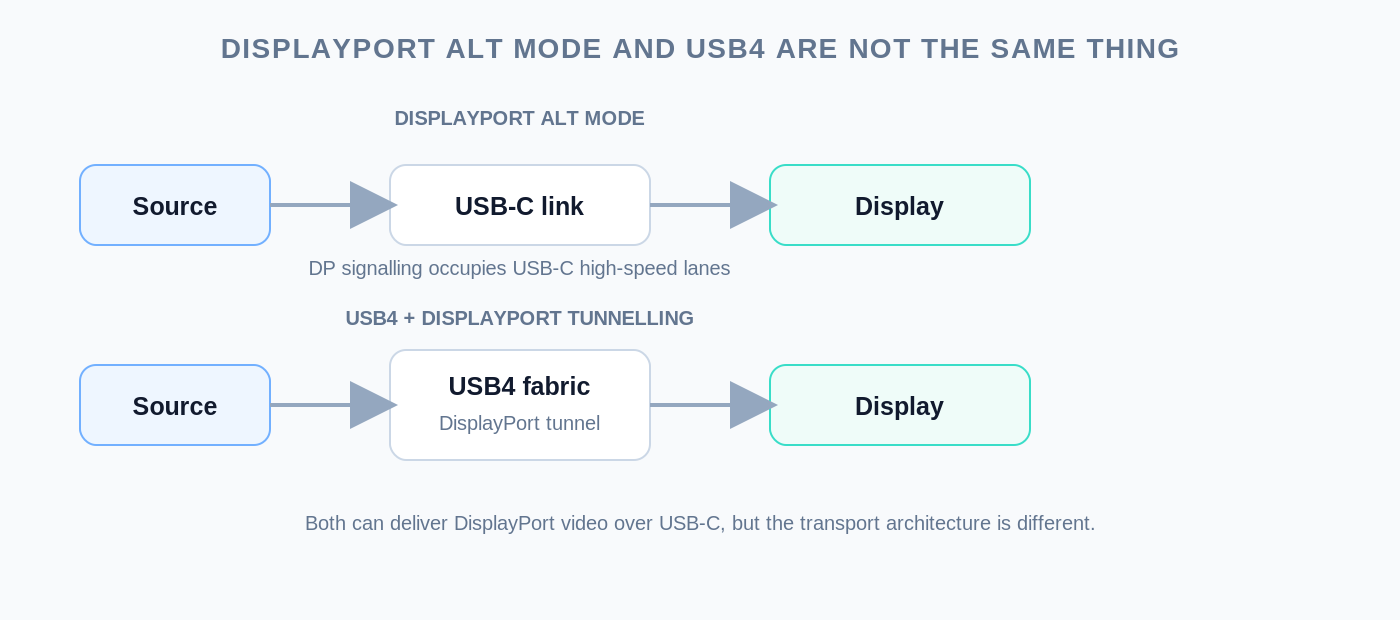
Both approaches can result in DisplayPort video coming out of a USB-C connector, but the underlying transport is different.
VESA’s DisplayPort 2.0 work specifically extended DisplayPort Alt Mode for USB-C and described configurations capable of carrying very high-bandwidth DisplayPort video over USB-C.
So what does “USB-C with DisplayPort” actually tell you?
It tells you that the manufacturer says the USB-C port supports DisplayPort output.
But it may still leave several important questions unanswered.
| Specification | Question you should still ask |
|---|---|
| "USB-C with DisplayPort" | Which DisplayPort generation and maximum link rate? |
| "DisplayPort 1.4" | Does the port expose two or four DisplayPort lanes? |
| "DisplayPort 2.1" | Which UHBR tier is actually supported? |
| "Supports external displays" | At what resolution, refresh rate and number of displays? |
| "USB-C video output" | Is the video provided by DisplayPort Alt Mode or through USB4/Thunderbolt? |
This is why a good laptop specification should ideally give you something much more concrete than just the connector name.
DisplayPort version still matters
Lane allocation is only one part of the equation.
The DisplayPort generation determines the signalling rate and other capabilities available on those lanes.
For example:
- DP 1.2 uses HBR2, up to 5.4 Gbps per lane.
- DP 1.4 uses HBR3, up to 8.1 Gbps per lane.
- DP 2.x introduces UHBR modes, reaching up to 20 Gbps per lane in UHBR20.
So a four-lane DP 1.4 connection and a four-lane DP 2.1 UHBR20 connection are very different things.
This is also why the phrase “USB-C DisplayPort” is not enough to calculate maximum monitor capability.
You need at least:
DisplayPort generation + lane allocation + lane rate
and sometimes:
DSC + cable + dock + display capability
What happens when a dock is involved?
A dock adds another layer to the problem.
The laptop may provide DisplayPort over USB-C, but the dock has to receive that display capability and then expose it to the monitor through its own outputs.
The dock might provide:
- DisplayPort;
- HDMI;
- USB data;
- Ethernet;
- audio;
- and charging.
Those functions all depend on the dock’s internal architecture and the bandwidth available from the host connection.
A dock that advertises “dual 4K monitors” therefore tells you much more than a dock that simply says “USB-C video”.
The complete path matters:
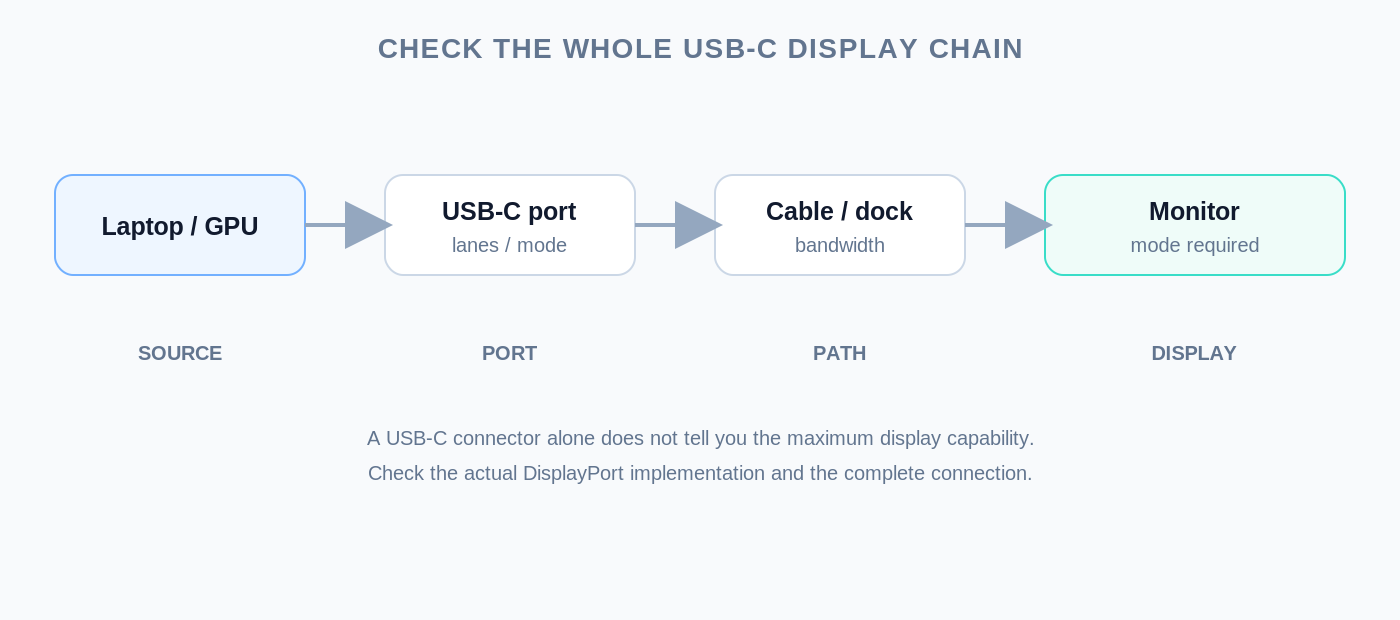
A high-end GPU cannot compensate for a low-capability USB-C port.
Likewise, a high-bandwidth USB-C port cannot make a monitor support a mode it does not accept.
And a capable source and monitor can still be limited by the cable or dock in between.
Can USB-C carry HDMI instead?
Yes, USB-C can also be used for HDMI through appropriate implementations and adapters.
But this is another example of why the connector itself is not the protocol.
For DisplayPort, the relevant native USB-C mechanism is DisplayPort Alt Mode.
For HDMI output, a device may use an appropriate conversion or an HDMI Alternate Mode implementation, depending on the hardware.
For the buyer, the practical question is still the same:
What video output does this particular port actually support?
Do not infer it from the shape of the connector.
Why DisplayPort became so important to USB-C
There is a good reason DisplayPort is so common on USB-C laptops.
DisplayPort was designed as a flexible digital display transport and fits naturally into the USB-C connector’s high-speed lane architecture.
VESA’s original USB-C Alt Mode announcement explicitly described a single USB-C connection carrying DisplayPort audio/video while also allowing USB data and power functions.
Later DisplayPort generations increased the available bandwidth substantially. VESA’s DisplayPort 2.0 material, for example, describes up to 80 Gbps of raw DisplayPort bandwidth over four USB-C high-speed lanes, with configurations that can also preserve USB data by using only two lanes for DisplayPort.
This combination of video, data and power is a major reason USB-C has become such an important laptop connectivity interface.
What should you look for when buying a laptop?
If external displays matter to you, don’t stop at the connector icon.
Look for the following information:
| Check | Why it matters |
|---|---|
| DisplayPort version | Establishes the generation and available signalling capabilities. |
| Maximum DP link rate / UHBR | Provides a much better indication of bandwidth than "USB-C" alone. |
| Maximum number of displays | Important for multi-monitor setups and docks. |
| Maximum resolution and refresh rate | This is ultimately what you are trying to achieve. |
| DSC support | Can make demanding display modes practical within the available bandwidth. |
| USB data capability while displaying | Important when you want a single USB-C connection to handle both monitors and fast peripherals. |
A particularly useful specification looks something like:
USB4 40 Gbps with DisplayPort 2.1 and USB Power Delivery
That tells you substantially more than:
1 × USB-C
But even then, you may need to check the exact display output modes supported by the manufacturer.
The practical rule
The most useful way to think about USB-C video is:
USB-C is the road. DisplayPort is one of the kinds of traffic that can use it.
The connector tells you very little about how large or fast that road actually is.
When DisplayPort Alt Mode is involved, check:
- Which DisplayPort generation is supported?
- How many USB-C high-speed lanes are assigned to DisplayPort?
- What is the maximum lane rate?
- Is DSC supported?
- What does the cable or dock support?
- What display mode are you actually trying to run?
Only then can you determine whether a USB-C port is suitable for the monitor you have in mind.
Bottom line
DisplayPort Alt Mode is one of the most useful things about USB-C.
It allows a small, reversible USB-C connector to carry a full DisplayPort video signal, while the same connection can also provide USB data and power.
But that flexibility is exactly why USB-C specifications can be confusing.
A USB-C connector does not have a single fixed capability.
The port may provide DisplayPort through Alt Mode, USB data, Power Delivery, USB4, Thunderbolt, or several of these at once. And when DisplayPort is involved, the number of lanes assigned to video can affect the available bandwidth.
So when you see “USB-C with DisplayPort”, don’t treat that as the end of the specification.
Treat it as the beginning of the investigation.
Sources
- VESA, “VESA Brings DisplayPort to New USB Type-C Connector” — the original DisplayPort Alt Mode announcement and explanation of lane allocation.
https://vesa.org/featured-articles/vesa-brings-displayport-to-new-usb-type-c-connector/ - VESA, “VESA Releases Updated DisplayPort Alt Mode Spec to Bring DisplayPort 2.0 Performance to USB4 and New USB Type-C Devices” — DisplayPort 2.0 over USB-C and high-bandwidth configurations.
https://vesa.org/featured-articles/vesa-releases-updated-displayport-alt-mode-spec-to-bring-displayport-2.0-performance-to-usb4-and-new-usb-type-c-devices/ - VESA, “Why DisplayPort” — examples of DisplayPort configurations over USB-C, including two-lane configurations.
https://vesa.org/displayport-developer/why-displayport/ - USB-IF, “VESA - DisplayPort Alternate Mode on USB-C” — USB-IF document-library material covering DP Alt Mode over USB-C.
https://www.usb.org/document-library/vesa-displayporttm-alternate-mode-usb-cr