DisplayPort Versions Explained: What Do 1.2, 1.4 and 2.1 Actually Mean?
DisplayPort specifications can look intimidating. DisplayPort 1.2, 1.4, 2.0, 2.1, UHBR10, UHBR13.5, UHBR20, DSC — it is easy to end up treating the version number as if it were a simple quality rating.
It isn’t.
A newer DisplayPort generation generally provides a faster and more capable transport, but the number printed in a specification sheet does not tell you by itself what a particular laptop or monitor can actually do.
For most buyers, the important question is much simpler:
Can this particular source, cable and display carry the resolution, refresh rate, colour depth and other features I actually want?
This article explains how DisplayPort evolved, what the major versions changed, and how to interpret the specifications in practical terms.
The short version
If you only need the practical answer:
- DisplayPort 1.2 is still perfectly adequate for many ordinary monitors, including 1440p and some 4K configurations.
- DisplayPort 1.4 increased the raw link rate and, importantly, added support for Display Stream Compression (DSC), making much higher-resolution and higher-refresh-rate displays practical.
- DisplayPort 2.x made a much larger bandwidth jump, introducing the UHBR (Ultra-high Bit Rate) link rates and more efficient data encoding.
- DisplayPort 2.1 is not simply “80 Gbps”. A product can support DisplayPort 2.1 without supporting the maximum UHBR20 rate.
- For a laptop, the capabilities of the actual USB-C/DisplayPort implementation matter more than the DisplayPort version number printed in a general specification.
First: what is a DisplayPort “version”?
DisplayPort is a digital interface standard developed by VESA (Video Electronics Standards Association). It defines how display and audio data are transported between a source, such as a computer, and a display.
A DisplayPort version is therefore a specification generation.
Each generation can introduce:
- higher link rates;
- more efficient encoding;
- new transport features;
- improved multi-display support;
- compression support;
- better integration with USB-C and USB4;
- and other protocol changes.
But a version number does not mean that every device implementing that version supports every possible performance level.
That distinction becomes particularly important with DisplayPort 2.x.
DisplayPort’s bandwidth evolution
The simplest way to understand the generations is to look at the link bandwidth.
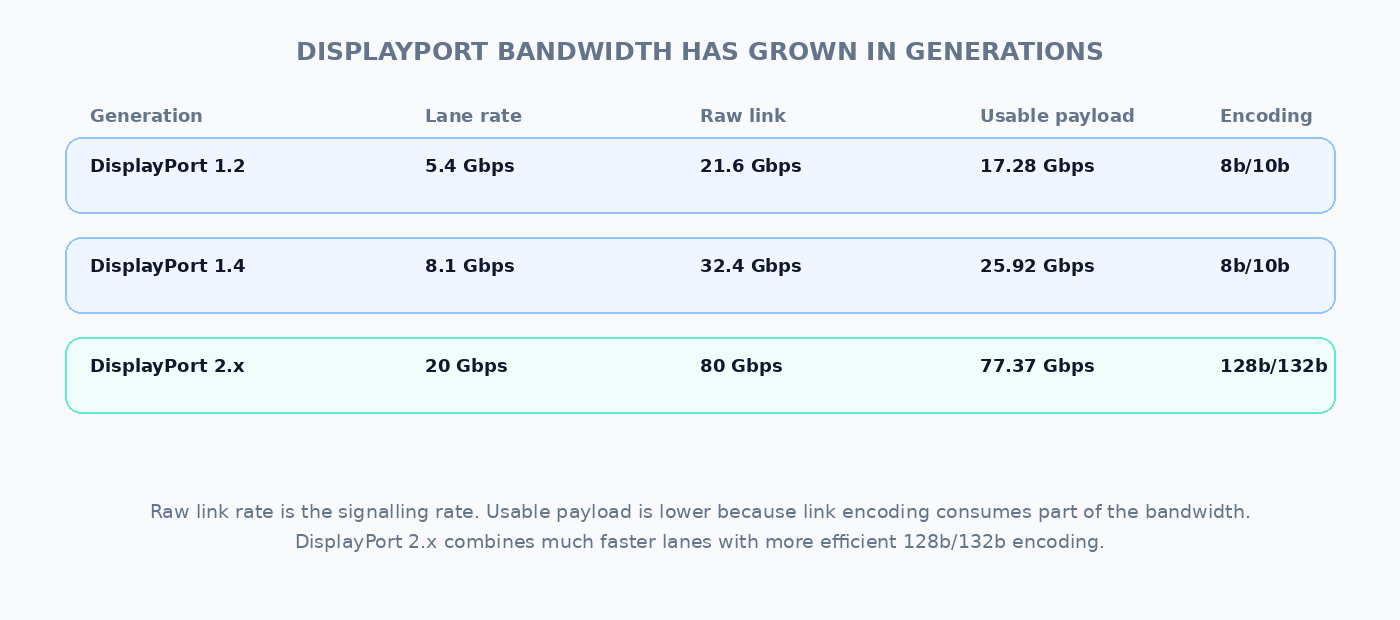
DisplayPort 1.2 uses four lanes at up to 5.4 Gbps per lane, giving a maximum raw link rate of 21.6 Gbps. Because the earlier DisplayPort generations use 8b/10b encoding, the maximum usable payload is lower: about 17.28 Gbps.
DisplayPort 1.4 raised the link rate to 8.1 Gbps per lane, giving 32.4 Gbps raw and 25.92 Gbps of payload bandwidth. VESA’s DisplayPort 1.2 and 1.4 documentation
DisplayPort 2.x changed the picture substantially. Its UHBR20 mode reaches 20 Gbps per lane, or 80 Gbps across four lanes. The newer 128b/132b encoding is much more efficient, producing a maximum payload of about 77.37 Gbps. VESA’s DisplayPort 2.0 overview
The important point is that raw link rate and usable payload are not the same number.
What is a “lane”?
A DisplayPort connection normally uses four high-speed data lanes.
You can think of each lane as an independent high-speed channel. Increasing the speed of each lane increases the total capacity of the link.
For example:
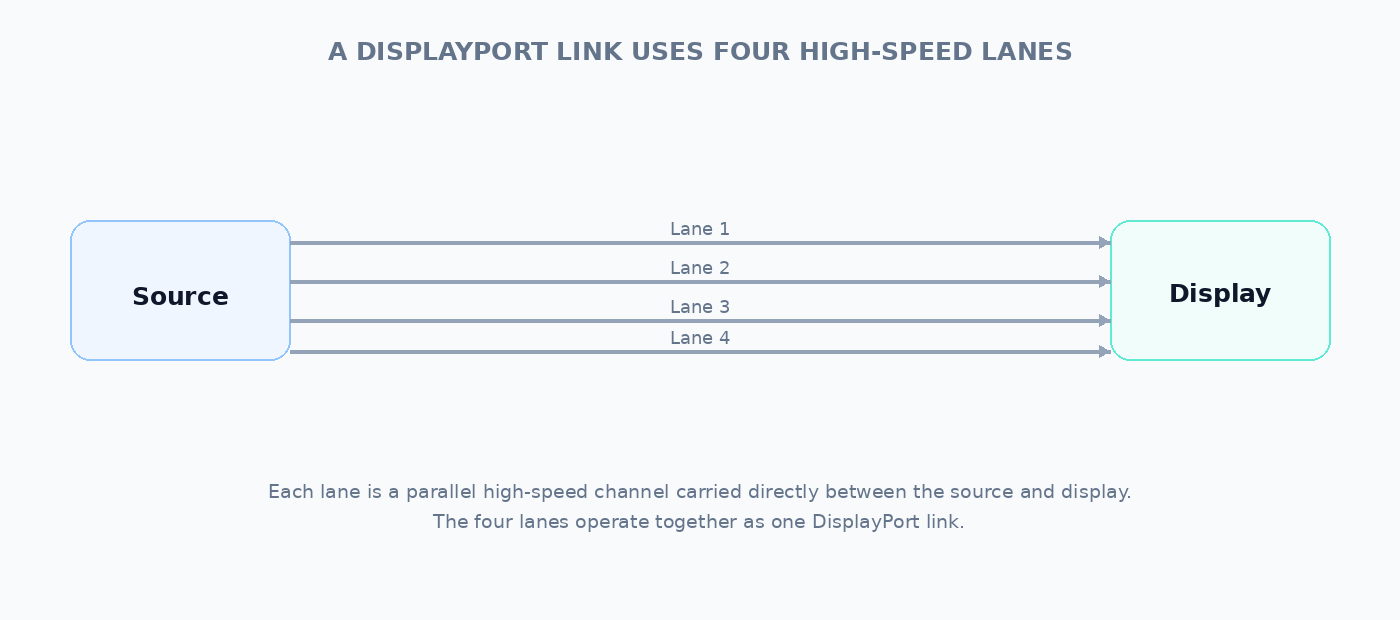
Four lanes × 5.4 Gbps per lane gives the 21.6 Gbps raw rate of DisplayPort 1.2.
Four lanes × 8.1 Gbps per lane gives the 32.4 Gbps raw rate associated with DisplayPort 1.3/1.4.
Four lanes × 20 Gbps per lane gives the 80 Gbps raw link rate of UHBR20.
The version number therefore hides an important detail: how fast each lane is actually operating.
DisplayPort 1.2: the generation that became “good enough” for a long time
DisplayPort 1.2 was introduced in 2010 and doubled the maximum link rate compared with DisplayPort 1.1a, from 10.8 to 21.6 Gbps. It also introduced Multi-Stream Transport (MST), allowing multiple independent display streams to share one DisplayPort connection. VESA’s DisplayPort 1.2 overview
That made DP 1.2 a major step forward for computer displays.
For a typical desktop monitor, however, you do not necessarily need anything newer.
For example, a 2560 × 1440 monitor at 60 Hz has a relatively modest uncompressed video requirement compared with the capacity of a four-lane DP 1.2 link.
The same is true of many 1080p and ordinary 1440p gaming monitors.
So seeing “DisplayPort 1.2” on a laptop is not automatically a warning sign.
DisplayPort 1.4: why it mattered more than the version number suggests
DisplayPort 1.4 retained the 32.4 Gbps HBR3 link rate introduced by DP 1.3, but added several important features.
Most notably, it introduced support for Display Stream Compression (DSC) 1.2 and Forward Error Correction (FEC). VESA describes DSC as visually lossless and specifies compression ratios of up to 3:1. VESA’s DisplayPort 1.4 overview
What is DSC?
DSC stands for Display Stream Compression.
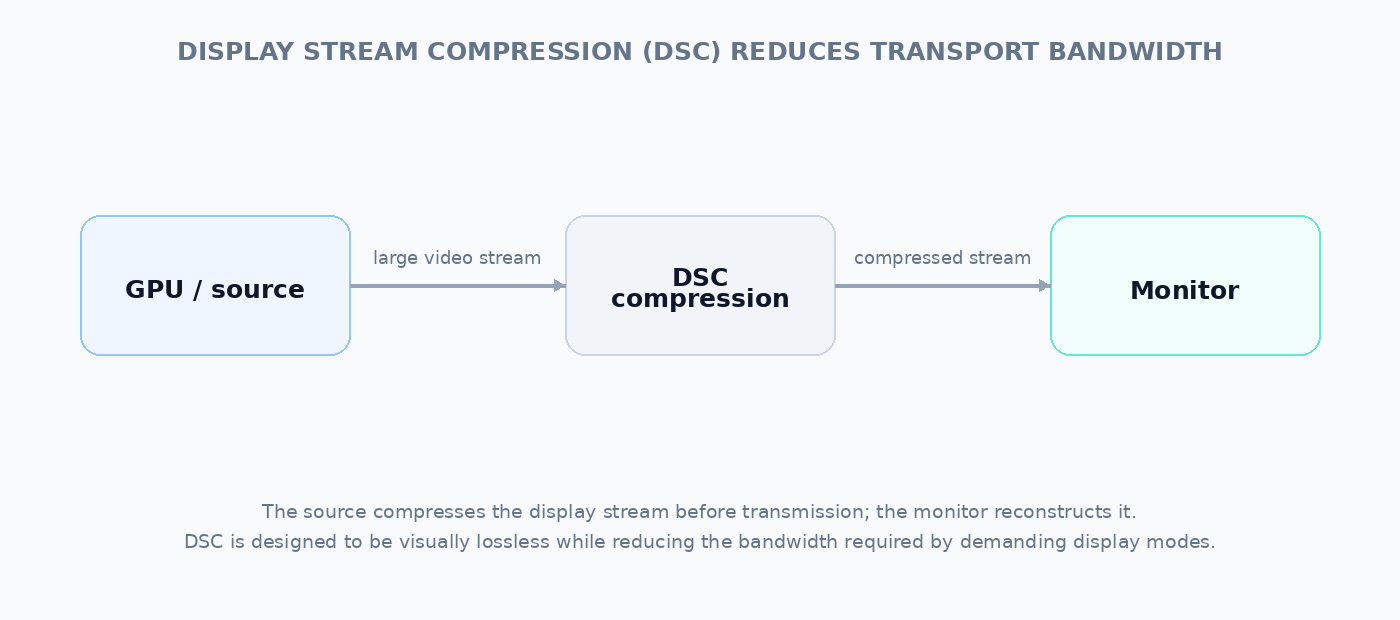
It is a compression system designed specifically for display data. Instead of requiring the entire uncompressed video stream to cross the physical link, the source compresses the stream and the display reconstructs it.
The idea is roughly:
This matters because the amount of data required by a display rises very quickly as you increase:
- resolution;
- refresh rate;
- colour depth;
- and sometimes the number of displays.
A 4K display at 60 Hz is one thing. A 4K display at 240 Hz with HDR is another.
DSC can make the latter practical without requiring the physical link to carry the full uncompressed data stream.
Why “DP 1.4” does not mean “8K at anything you like”
This is one of the most common misunderstandings.
A specification may advertise an impressive maximum resolution, but display bandwidth depends on several variables simultaneously.
For uncompressed RGB video, the approximate data requirement grows with:
horizontal pixels × vertical pixels × refresh rate × bits per pixel
There is also transport overhead.
So:
- 4K at 60 Hz;
- 4K at 144 Hz;
- 4K at 240 Hz;
- 8K at 60 Hz;
are very different workloads.
And colour depth matters too. A 10-bit-per-channel HDR signal requires more data than an 8-bit signal at the same resolution and refresh rate.
This is why specifications such as “supports 8K” are often less useful than they appear.
DisplayPort 2.x: a much larger bandwidth jump
DisplayPort 2.0, published in 2019, increased the maximum link rate dramatically.
The highest mode uses four lanes at 20 Gbps per lane, giving an 80 Gbps raw link rate. More efficient 128b/132b encoding produces a maximum payload of approximately 77.37 Gbps — roughly three times the payload bandwidth of DP 1.4a. VESA’s DisplayPort 2.0 overview
That additional capacity is aimed at workloads such as:
- very high-refresh-rate 4K;
- 8K displays;
- ultra-wide high-resolution displays;
- multiple high-resolution monitors;
- professional and workstation applications;
- and future display formats with still greater bandwidth requirements.
DisplayPort 2.1 superseded DP 2.0 and tightened the relationship between DisplayPort, USB-C and USB4. VESA also made DSC support mandatory for DP 2.1 certification. VESA’s DisplayPort 2.1 overview
So what is UHBR?
UHBR means Ultra-high Bit Rate.
It is the terminology used for the higher-speed DisplayPort 2.x link rates.
The important UHBR levels include:
| UHBR mode | Per lane | 4 lanes | Practical significance |
|---|---|---|---|
| UHBR10 | 10 Gbps | 40 Gbps | Lower UHBR tier; already a substantial step beyond HBR3. |
| UHBR13.5 | 13.5 Gbps | 54 Gbps | Higher-bandwidth DP 2.x connectivity. |
| UHBR20 | 20 Gbps | 80 Gbps | Maximum four-lane UHBR rate. |
VESA defines certified cable categories around these rates. DP54, for example, supports up to UHBR13.5 over four lanes, while DP80 supports UHBR20. VESA’s DisplayPort 2.1 cable specifications
This is why “DisplayPort 2.1” alone is not enough information if you are trying to determine the maximum display performance of a device.
You want to know the actual supported link rate.
DP 2.1 is not one single performance level
This is worth emphasising.
Imagine two laptops:
| Specification | Laptop A | Laptop B |
|---|---|---|
| DisplayPort version | DP 2.1 | DP 2.1 |
| Maximum DP rate | UHBR10 | UHBR20 |
| Four-lane raw bandwidth | 40 Gbps | 80 Gbps |
| Why it matters | High-performance connectivity | Maximum DP 2.x link bandwidth |
Both can legitimately be described as supporting DisplayPort 2.1, but they are not equivalent in maximum link performance.
VESA’s compliance program explicitly distinguishes DP 2.1 devices by the features and link rates they support. VESA DisplayPort compliance information
What about DisplayPort 2.1a and 2.1b?
You may encounter these suffixes in newer specifications.
They are updates to the DisplayPort 2.1 generation rather than completely new generations in the way that DP 1.4 and DP 2.x represented major bandwidth changes.
Among other things, DP 2.1a introduced the DP54 cable specification, allowing UHBR13.5 operation over longer passive cables. VESA subsequently announced DP80LL active cables for UHBR20, extending high-performance connections to longer cable lengths. VESA’s DisplayPort 2.1a and DP80LL updates
For most laptop buyers, these suffixes are far less important than the actual supported UHBR rate and the display mode you want to use.
DisplayPort over USB-C complicates things
This is particularly important for laptops.
A USB-C connector can carry DisplayPort using DisplayPort Alt Mode.
“Alt Mode” means that some of the high-speed signalling capability normally associated with USB can instead be assigned to another protocol — in this case, DisplayPort.
So a laptop can have:
USB-C connector → DisplayPort Alt Mode → DisplayPort signal → monitor
But the USB-C connector does not automatically tell you the DisplayPort performance.
The implementation matters.
Two lanes versus four lanes
One of the complications is that USB-C can divide its high-speed lanes between DisplayPort and USB data.
For example, a USB-C port may allocate:
- four lanes to DisplayPort; or
- two lanes to DisplayPort while retaining high-speed USB data.
That can significantly change the available display bandwidth.
VESA’s 2025 technical material notes that two-lane configurations are common in USB-C DisplayPort Alt Mode implementations. VESA’s 2025 DisplayPort technical update
This is one reason why a laptop specification saying “USB-C with DisplayPort” is much less informative than a specification saying exactly what display modes the port supports.
Does the cable matter?
Absolutely.
The source and monitor may both support a very high DisplayPort rate, but the cable also needs to be capable of carrying it reliably.
For high-performance DP 2.x connections, VESA provides certified cable categories such as DP54 and DP80. VESA’s DisplayPort 2.1 cable specifications
This gives us a useful mental model:
| Component | What to check |
|---|---|
| Source | Maximum DisplayPort link rate the GPU or laptop can actually output. |
| Port | Number of DisplayPort lanes available, especially over USB-C. |
| Cable | Whether the cable is rated for the required link rate. |
| Display | Resolution, refresh rate, colour depth and HDR modes it accepts. |
The weakest component can determine what you actually get.
What should a laptop buyer look for?
For ordinary laptop use, you generally do not need to chase the newest DisplayPort number.
Instead, start with the monitor you actually intend to use.
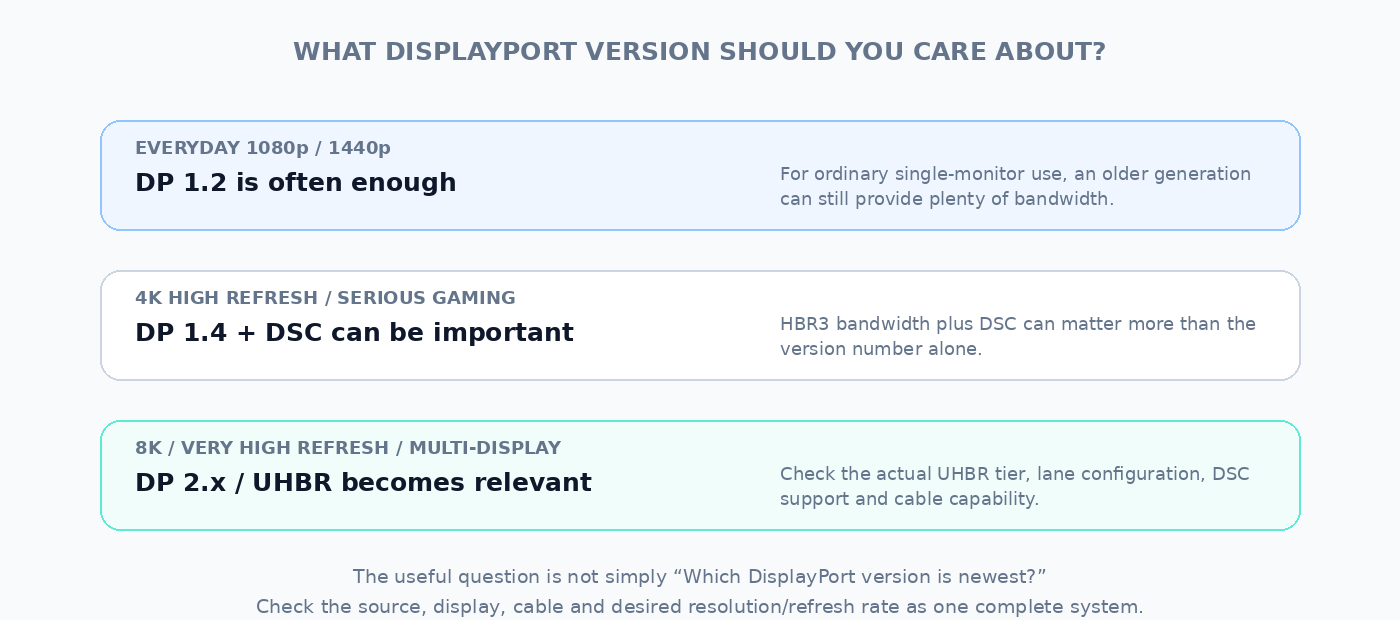
| Use case | What to look for |
|---|---|
| 1080p office | Almost any modern DisplayPort implementation should be sufficient. |
| 1440p | DP 1.2-class connectivity is often enough; check refresh rate. |
| 4K 60 Hz | DP 1.2 can be sufficient in appropriate configurations. |
| 4K high refresh | DP 1.4 with DSC or DP 2.x becomes increasingly useful. |
| 8K / extreme refresh / multi-display | Check DP 2.x, UHBR, DSC, lane allocation and cable requirements. |
The important lesson is that “newer” is not the same as “necessary.”
For an ordinary 1440p office monitor, the difference between DP 1.4 and DP 2.1 may be irrelevant.
For a 4K 240 Hz gaming monitor, it can be very important.
For a laptop intended to run several high-resolution external displays through a dock, the details of the USB-C/USB4 implementation can matter more than the headline DisplayPort version.
The specification trap: don’t stop at “supports DisplayPort”
Laptop specifications often use vague language such as:
USB-C with DisplayPort
That tells you something useful, but not enough.
It does not necessarily tell you:
- which DisplayPort generation is implemented;
- whether the port uses two or four display lanes;
- the maximum supported resolution;
- the maximum refresh rate;
- whether DSC is supported;
- how multiple displays behave;
- or how much USB bandwidth remains when DisplayPort is active.
If external-display capability matters to you, look for the actual maximum display modes or a detailed technical specification.
This is exactly the kind of information that a port database can make much easier to compare.
A better way to read a DisplayPort specification
When comparing two laptops or graphics cards, read the specification in this order:
| Priority | Specification | Why it matters |
|---|---|---|
| 1 | Maximum resolution + refresh rate | This is the actual display mode you want to run. |
| 2 | DisplayPort link rate | Determines how much transport bandwidth is available. |
| 3 | Number of DP lanes | Especially important when DisplayPort is carried over USB-C. |
| 4 | DSC support | Can make demanding display modes practical within the available link bandwidth. |
| 5 | Cable / dock capability | The complete connection must support the required mode. |
One final warning about version numbers
DisplayPort version numbers are useful, but they are a poor substitute for understanding the complete connection.
Think of them as families of capabilities, not simple speed ratings.
A better hierarchy is:
- What display do I want to drive?
- What resolution and refresh rate do I need?
- Does the laptop’s actual port support that mode?
- How many DisplayPort lanes are available?
- Is DSC required or supported?
- Is the cable capable of carrying the required link rate?
- If I am using a dock, does the dock preserve the required bandwidth?
Only after those questions does the DisplayPort version number become particularly useful.
Bottom line
DisplayPort has evolved from a roughly 21.6 Gbps four-lane interface in DP 1.2, through the 32.4 Gbps HBR3 generation of DP 1.3/1.4, to the much higher-bandwidth UHBR modes of DisplayPort 2.x. VESA’s DisplayPort generation history
But the practical progression is not simply:
1.2 < 1.4 < 2.1
Instead, each generation combines higher bandwidth with features such as DSC, MST and improved USB-C/USB4 integration.
For most people, the right question is therefore not:
“Does this laptop have the newest DisplayPort?”
It is:
“Can this laptop drive the displays I want, at the resolution and refresh rate I want, through the connection I intend to use?”
That is a much more useful specification.