How Many Monitors Can Your Laptop Drive?
“How many monitors can this laptop support?”
It sounds like a simple question. Unfortunately, the answer is rarely just a number printed next to the USB-C or HDMI ports.
A laptop might have:
- one HDMI output;
- two USB-C ports with DisplayPort;
- Thunderbolt or USB4;
- a built-in screen;
and yet the number of external monitors you can actually use — and the resolution and refresh rate they can run at — depends on the way the laptop’s graphics hardware and ports are connected.
The good news is that the problem becomes much easier to understand once you separate a few different concepts.
The short version
For most laptops, the maximum number of usable displays is determined by a combination of:
- The graphics/display engine — how many independent display streams the system can generate.
- The physical outputs — HDMI, DisplayPort, USB-C, Thunderbolt and so on.
- The transport architecture — for example, DisplayPort Multi-Stream Transport (MST), USB4 or Thunderbolt.
- Available bandwidth — enough capacity must exist for the resolution and refresh rate of every display.
- The laptop manufacturer’s implementation — the processor or GPU may support more displays than the particular laptop exposes.
- The dock or adapter — if one is involved, it becomes another part of the display path.
So there is no universal rule such as:
One video port = one monitor.
Nor is there a reliable rule such as:
Three USB-C ports = three monitors.
The actual implementation matters.
First: what counts as a “display”?
There are several different questions that can be confused here.
A laptop has an internal display, usually connected through Embedded DisplayPort (eDP).
It may also have one or more external display outputs.
When a manufacturer says that a graphics processor supports, for example, four displays, that does not necessarily mean you can connect four external monitors to every laptop using that processor.
The manufacturer’s motherboard and port design determine how those display engines are exposed.
Intel explicitly warns that a graphics processor may support more displays than a particular computer allows because manufacturers can impose system-level restrictions. Intel: maximum display guidance
This is one reason processor-level specifications and laptop-level specifications should not be treated as interchangeable.
What actually determines the number of displays?
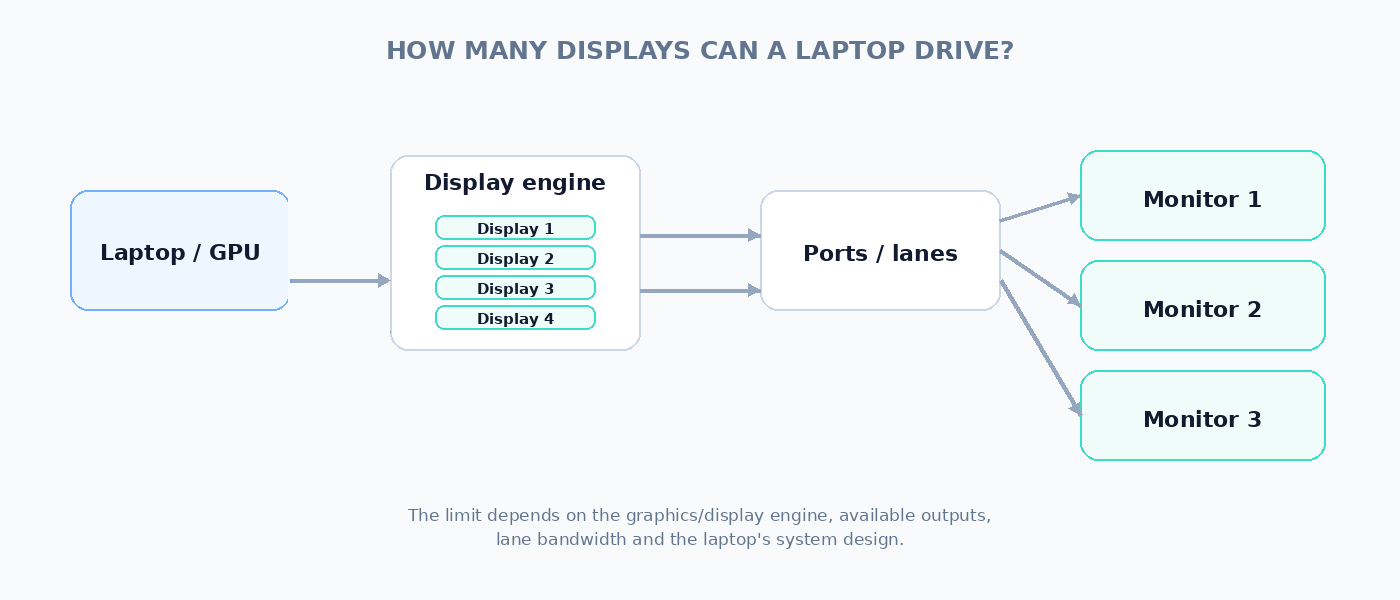
Think of the laptop as having a display-producing system in the middle, with various ways of getting those signals out to monitors.
| Factor | What it controls | Why it matters |
|---|---|---|
| Graphics/display engine | How many independent display streams the hardware can generate | This places a fundamental upper limit on simultaneous displays. |
| Physical ports | Where those display signals can leave the laptop | A capable GPU is not useful if the laptop does not expose enough suitable outputs. |
| Lane allocation | How much DisplayPort bandwidth a USB-C connection gets | Two-lane and four-lane configurations can have very different capabilities. |
| Bandwidth | How much video data can be transported | Several high-resolution/high-refresh displays can consume a great deal of capacity. |
| Dock / hub | How one host connection is distributed to several displays | The dock can use native display transport, MST, USB4/Thunderbolt or USB graphics. |
The important point is that display count and display bandwidth are related, but they are not the same thing.
A system may have enough display engines for three monitors but not enough bandwidth to run three particularly demanding modes simultaneously.
The laptop’s built-in screen counts too — sometimes
This is a subtle but important point.
The internal laptop panel is itself a display.
However, manufacturers and GPU specifications may describe “maximum displays” in ways that include or exclude the internal panel depending on the architecture and documentation.
For example, Intel’s documentation distinguishes between the laptop’s local flat panel and external flat panels in some multi-display configurations. Intel: three-display configurations
So if a specification says:
Maximum displays: 4
you should not automatically interpret that as:
Four external monitors plus the laptop screen.
You need the laptop manufacturer’s actual configuration information.
DisplayPort MST: one connection, multiple displays
One of the most important technologies for multi-monitor setups is DisplayPort Multi-Stream Transport (MST).
MST was introduced with DisplayPort 1.2.
It allows multiple independent audio/video streams to share a single DisplayPort connection.
In practical terms, that means a single DisplayPort connection can feed a device such as an MST hub, which then exposes multiple display outputs.
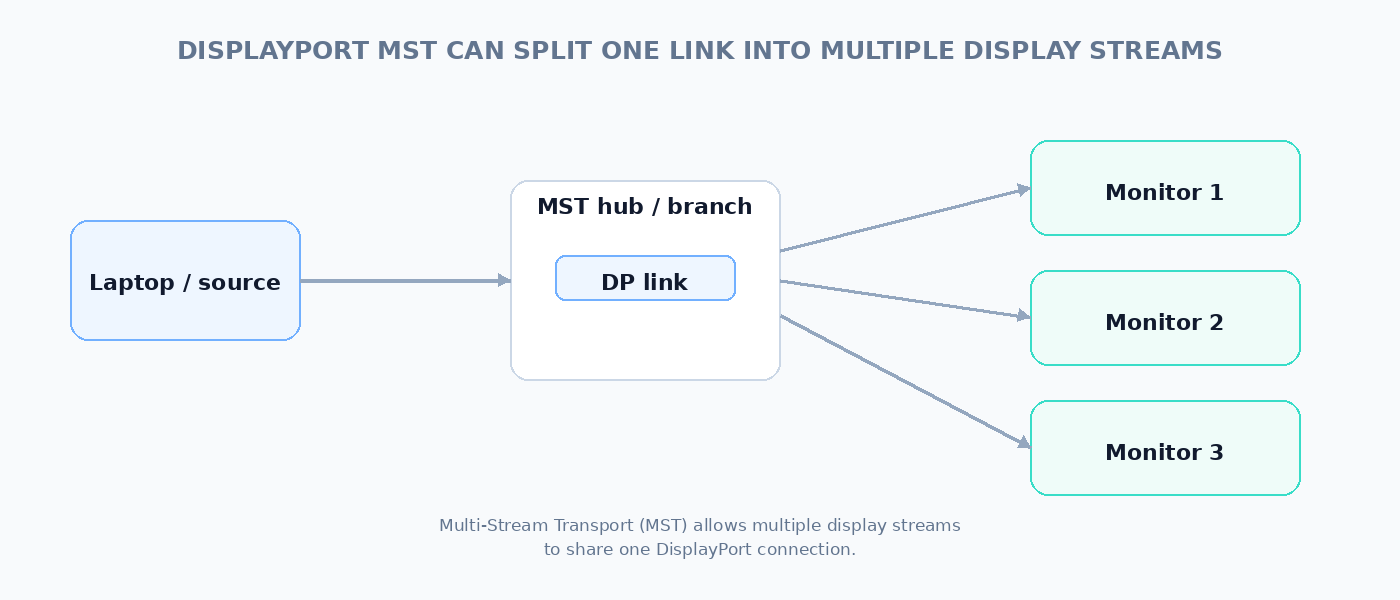
This is one of the reasons a single USB-C port can sometimes drive multiple monitors.
If the USB-C port is carrying DisplayPort, an MST-capable dock or hub can split that DisplayPort transport into multiple display outputs.
VESA describes MST as allowing multiple separate A/V streams to share one DisplayPort connection. VESA DisplayPort MST overview
But MST does not create bandwidth
This is probably the most important thing to understand about MST.
An MST hub can divide one DisplayPort link into several display streams.
It cannot make that link faster.
If the upstream connection has a certain amount of bandwidth, all of the displays downstream have to share it.
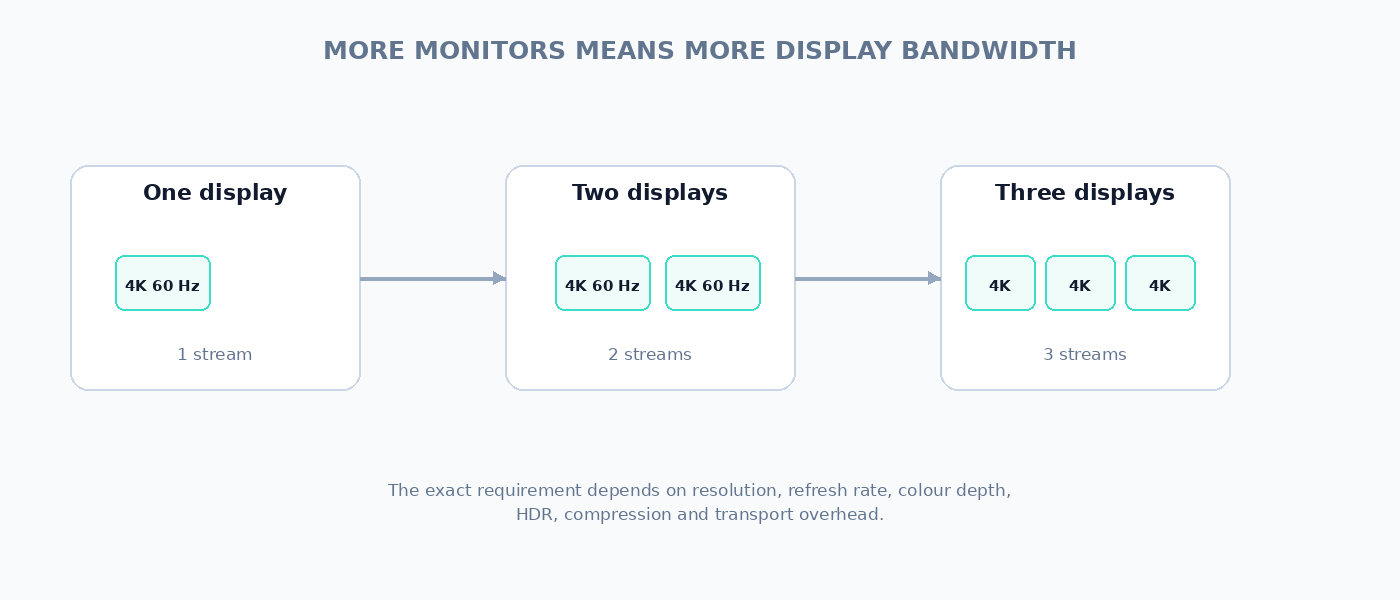
For example, two 4K 60 Hz monitors require considerably more display bandwidth than one.
Three require more again.
The exact requirement depends on:
- resolution;
- refresh rate;
- colour depth;
- HDR;
- compression such as DSC;
- and transport overhead.
This means a statement such as:
“Supports three monitors”
is incomplete unless you also know at what display modes.
Why two 4K monitors may work when three do not
Suppose a laptop has enough display engines for three external displays.
That does not mean three arbitrary monitors will work.
Consider three configurations:
| Configuration | Relative demand | What to investigate |
|---|---|---|
| 2 × 1080p 60 Hz | Relatively modest | Usually limited more by system topology and display outputs than raw video bandwidth. |
| 2 × 4K 60 Hz | Substantially higher | Check the DisplayPort/USB-C link, dock capability and maximum supported simultaneous modes. |
| 3 × 4K high refresh | Very demanding | Check the exact GPU/display-engine capability, link bandwidth, DSC support and dock architecture. |
The practical lesson is:
Monitor count without resolution and refresh rate is not a very useful specification.
USB-C makes the question more complicated
As we discussed in the previous article, USB-C can carry DisplayPort through DisplayPort Alt Mode or can carry DisplayPort through USB4/Thunderbolt tunnelling.
That creates several possible multi-monitor architectures.
A USB-C port might:
- devote four high-speed lanes to DisplayPort;
- devote two lanes to DisplayPort and retain two for USB data;
- carry DisplayPort through USB4;
- or be part of a Thunderbolt connection.
The available display bandwidth and the way multiple displays are handled can therefore differ substantially between two USB-C ports that look identical.
For the detailed explanation of these mechanisms, see the previous article:
USB-C DisplayPort Alt Mode: How Video Travels Through USB-C
Thunderbolt and USB4
Thunderbolt and USB4 are particularly useful for docking because they provide a high-bandwidth connection between the laptop and the dock.
DisplayPort can be carried through these connections, alongside other traffic.
That makes a single laptop port capable of connecting to a dock that provides:
- multiple displays;
- USB peripherals;
- Ethernet;
- storage;
- audio;
- and charging.
But again, the dock does not magically eliminate bandwidth limits.
The host connection still has finite capacity, and the dock’s own architecture determines how that capacity is distributed.
Intel’s documentation also makes the broader point that the physical USB-C connector should not be confused with Thunderbolt support: not every USB-C system is Thunderbolt-compatible. Intel: three-display configurations
A dock can work in several different ways
“Docking station” is a broad category rather than a single technical architecture.
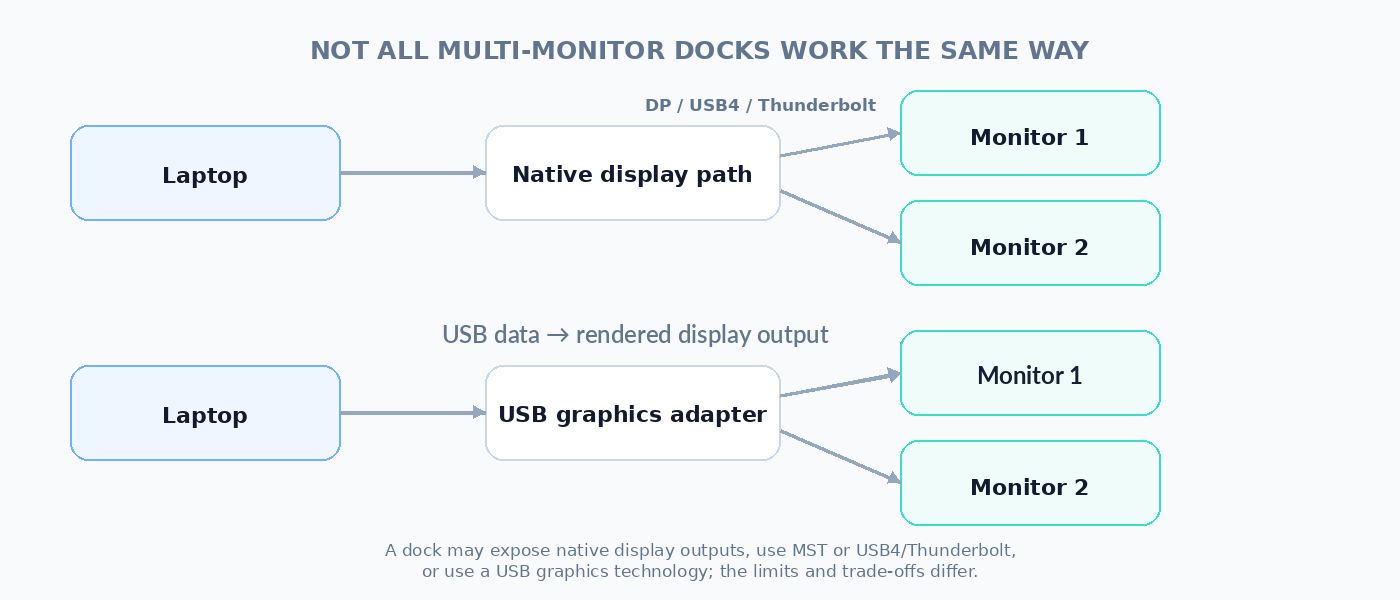
A dock may use:
Native DisplayPort transport
The dock receives DisplayPort streams from the laptop and routes them to its display outputs.
This can involve MST or USB4/Thunderbolt transport.
USB graphics technology
Some docks use a USB graphics system in which display frames are transported as USB data and processed by a dedicated display adapter in the dock.
This is a fundamentally different approach.
It can be useful when a laptop does not have enough native display outputs, but it has different performance characteristics and is not equivalent to a native DisplayPort connection.
For ordinary desktop productivity, a USB graphics solution can be perfectly useful. For demanding gaming, high-refresh displays or latency-sensitive workloads, you should investigate the technology rather than assuming that every “dual-monitor dock” is equivalent.
Can an HDMI splitter give you two independent monitors?
Usually, no.
A conventional HDMI splitter duplicates one video signal.
It can give you:
One source → two displays showing the same image
but not normally:
One source → two independent extended desktops
Microsoft explicitly notes that a display splitter duplicates the same signal rather than creating two independent displays. Microsoft: troubleshooting external monitors
That distinction is important when shopping for inexpensive multi-monitor adapters.
If you want two independent screens, look for a technology that explicitly supports extended multi-display output, not merely “dual HDMI”.
What about USB graphics adapters?
USB graphics adapters can provide additional display outputs by treating the display connection as USB data rather than as another native GPU display output.
This can be useful for:
- office work;
- web browsing;
- email;
- documents;
- dashboards;
- and other relatively static productivity workloads.
But they are not necessarily ideal for:
- high-refresh gaming;
- demanding 3D applications;
- colour-critical work;
- or applications where latency matters.
The important point is that “supports two monitors” does not tell you how those monitors are being driven.
Does the GPU matter if the laptop has a dedicated GPU?
Yes, but laptop GPU topology can be complicated.
A modern laptop may contain:
- an integrated GPU;
- a discrete GPU;
- a display multiplexer (MUX);
- or a hybrid arrangement where different outputs are connected to different graphics processors.
NVIDIA documents systems where a display multiplexer can determine whether an external display is driven by the integrated or discrete GPU. NVIDIA display multiplexer documentation
This matters because the number and type of display outputs can depend on which GPU is actually connected to them.
So “this laptop has an RTX GPU” is not enough information to determine its external-display capabilities.
The laptop manufacturer’s implementation wins
This is perhaps the most important practical rule in the entire article.
A processor or GPU specification can say:
Supports up to four displays
while a particular laptop using that processor may expose only two external display paths.
Conversely, a laptop may expose several display outputs through a sophisticated USB4 or Thunderbolt implementation.
Intel explicitly advises users to check the computer manufacturer’s configuration because system manufacturers can restrict the number of displays supported by a graphics processor. Intel: maximum display guidance
So when evaluating a laptop, the laptop specification is more useful than the processor specification alone.
What should you look for in a laptop specification?
| Specification | What you want to know |
|---|---|
| Maximum external displays | How many independent external monitors does the laptop itself support? |
| Maximum resolution / refresh | At what resolution and refresh rate can those displays operate simultaneously? |
| USB-C display capability | Which ports support DisplayPort, USB4 or Thunderbolt, and what are their actual display limits? |
| HDMI | Which HDMI version is implemented and what display modes are supported? |
| MST / multi-stream | Can one DisplayPort-capable connection feed multiple independent displays? |
| Dock support | Does the manufacturer specify particular multi-monitor dock configurations? |
| GPU topology | Which GPU actually drives each external display output? |
The best specification is not:
“Supports up to 4 displays.”
It is something more like:
“Supports two external 4K displays at 60 Hz through USB-C/Thunderbolt, plus the internal display.”
The latter tells you something you can actually use.
A practical way to work out your own laptop
If you already own the laptop, don’t start by counting connectors.
Start with the display configuration you want.
For example:
I want the laptop screen + two external 4K 60 Hz monitors.
Then work backwards:
- Does the graphics system support three simultaneous displays?
- Does the laptop expose the necessary display outputs?
- Can the USB-C/Thunderbolt/DisplayPort path carry the required bandwidth?
- If using a dock, does the dock support the required number and modes of displays?
- If using MST, does the upstream DisplayPort link have enough capacity?
- If using a USB graphics adapter, is its performance appropriate for the workload?
This approach is much more reliable than looking for a single magic number.
A useful rule of thumb
For ordinary productivity, the practical progression is roughly:
| Setup | What usually matters most |
|---|---|
| One external monitor | Port capability and monitor compatibility |
| Two external monitors | Display-engine count, outputs, bandwidth and dock architecture |
| Three or more | Exact GPU/display topology, transport architecture and simultaneous-mode limits |
| High-resolution/high-refresh multi-monitor | Bandwidth, DSC, lane allocation and dock capability become increasingly important |
The higher you go, the less useful a simple “number of displays” specification becomes.
What about mixing HDMI and DisplayPort?
That’s usually fine.
A laptop can drive one monitor through HDMI and another through DisplayPort/USB-C, provided the underlying graphics system supports the combination.
Intel’s documentation explicitly lists combinations involving DisplayPort, HDMI, Thunderbolt and the built-in display in supported multi-display configurations. Intel: supported three-display configurations
The important question is not whether the connectors are different.
It is whether the graphics hardware and system topology can drive them simultaneously.
What about daisy-chaining monitors?
DisplayPort MST can also be used in monitors that provide a DisplayPort output for daisy-chaining.
Conceptually:
Laptop → Monitor 1 → Monitor 2
The first monitor receives one DisplayPort stream and forwards another stream downstream.
This can reduce the number of cables returning to the laptop, but it does not remove the underlying bandwidth constraint.
The upstream connection still has to carry the combined display traffic.
The biggest mistakes buyers make
Mistake 1: Counting ports
Two HDMI ports do not automatically mean two independent displays.
Mistake 2: Counting USB-C ports
Three USB-C ports do not automatically mean three display outputs.
Mistake 3: Looking only at GPU specifications
The GPU may support more displays than the laptop exposes.
Mistake 4: Looking only at display count
“Supports three displays” says very little about whether those are three 1080p displays or three 4K high-refresh displays.
Mistake 5: Assuming a dock creates capability from nothing
A dock can distribute and transform available connectivity, but its upstream connection and architecture still impose limits.
Mistake 6: Assuming an HDMI splitter creates independent desktops
A conventional splitter normally duplicates the same signal.
Bottom line
There isn’t a single number that answers:
“How many monitors can my laptop drive?”
The answer is a system property.
You need to consider:
GPU/display engines → physical outputs → transport architecture → bandwidth → dock/adapter → monitors
For a simple one-monitor setup, this can be almost trivial.
For two monitors through a USB-C dock, the details start to matter.
For three or more high-resolution monitors, you really need to know what is happening inside the laptop and dock.
That is why a good laptop connectivity specification should ideally tell you not just which ports exist, but what those ports can actually support simultaneously.
And that is exactly where a detailed port database becomes useful: instead of decoding a vague specification like “2 × USB-C” or “supports up to 4 displays”, you can compare the actual capabilities of the individual ports and the configurations they support.
Sources
- Intel — Frequently Asked Questions for Multiple Displays
- Intel — Maximum Number of Displays Supported
- Intel — Supported Configurations for Three Displays
- Intel — Maximum Resolutions in a Three-Display Configuration
- Microsoft — Troubleshoot External Monitor Connections
- VESA — DisplayPort Multi-Stream Transport
- NVIDIA — Display Multiplexer
- AMD — Configuring Multiple Displays