Laptop Display Connections Explained
HDMI, DisplayPort, USB-C and Thunderbolt — what actually happens between your laptop and your display?
Connecting a laptop to a monitor sounds simple. The computer generates an image, sends some data down a cable, and the monitor displays it.
So why are there so many different standards?
HDMI. DisplayPort. USB-C. USB4. Thunderbolt. DisplayPort Alt Mode. HDMI Alt Mode. Display Stream Compression. FRL. MST.
And then there are numbers such as HDMI 2.1, DisplayPort 2.1, 40 Gbps, 80 Gbps, 4K 144 Hz and 8K 60 Hz.
It can look unnecessarily complicated.
The good news is that the underlying idea is fairly simple. The complexity comes from the fact that a modern laptop connection can carry much more than a simple stream of pixels.
This guide explains how the pieces fit together, why HDMI and DisplayPort both exist, what USB-C has to do with either of them, and — most importantly — which differences actually matter when you’re buying a laptop.
The basic problem: getting an image from A to B
At the simplest level, a display connection has to transport information describing the picture.
Imagine a 4K monitor. Its image contains:
3840 × 2160 pixels = about 8.3 million pixels per frame.
At 60 frames per second, that’s roughly:
8.3 million × 60 ≈ 498 million pixels per second.
And each pixel contains more than just “on” or “off”. A typical colour representation might use 8, 10 or 12 bits per colour channel.
So even before considering the details of the connection, a modern display can require a surprisingly large amount of data.
Increase the resolution from 4K to 8K and you get four times as many pixels.
Increase the refresh rate from 60 Hz to 120 Hz and you roughly double the amount of image data that needs to be delivered each second.
That’s why a connection that is perfectly adequate for 4K at 60 Hz may not be adequate for 4K at 240 Hz.
But there is an important complication:
The raw number of pixels isn’t the only thing that a display connection has to transport.
It also has to deal with timing, audio, control information, optional compression, multiple displays, content protection and other features.
And this brings us to an important question.
Why isn’t it simply a matter of throughput?
It is tempting to think of HDMI and DisplayPort as nothing more than different pipes.
If one pipe can carry 40 Gbps and another can carry 80 Gbps, why not simply use whichever has the larger number?
Bandwidth is extremely important, but the interface is more than its bandwidth.
A display connection also defines things such as:
- how information is encoded
- how the connection is established and negotiated
- how video data is organized
- how audio is transported
- how displays communicate their capabilities to the source
- how multiple displays can share a connection
- how compression is handled
- how variable refresh rates work
- how content-protection systems operate
- how errors and signal integrity are managed
So two connections with similar raw bandwidth can still have different capabilities and different architectures.
This is rather like saying that two roads with the same number of lanes must be equivalent. The capacity of the road matters enormously, but so do the junctions, traffic rules and what types of vehicles are allowed to use it.
There is another useful way to think about it. A display interface isn’t merely transporting a pile of pixels; it is defining a conversation between a source and a display.
When a monitor is connected, the source needs to discover what the monitor supports. It may need to establish the link, select an appropriate transmission mode, negotiate capabilities, and coordinate the timing of the video signal. The connection may also have to carry audio, control information and content-protection data.
That becomes even more important when one physical connection is doing several jobs at once. A modern USB-C or Thunderbolt connection might be carrying display traffic while also carrying USB data, for example.
So throughput answers an important question:
How much information can the connection move?
But the protocol answers another:
What kind of information can it move, and how does the source and destination cooperate to use the link?
Both matter.
Why are there both HDMI and DisplayPort?
Part of the answer is history, but history alone doesn’t explain everything.
The two standards emerged from somewhat different problems and product ecosystems.
HDMI grew out of consumer electronics
HDMI was created at the beginning of the high-definition transition in consumer electronics. Its original goal was explicitly to simplify the connection of high-definition video and multichannel audio equipment.
Think about a typical early-2000s home entertainment system:
DVD player → AV receiver → television
There might be separate connections for video and multiple channels of audio. HDMI’s founders designed a digital interface that could carry high-definition video and multichannel audio together in a single cable.
That “one cable from the source to the display” idea was particularly valuable in consumer electronics. The HDMI founders described the original goal as simplifying the distribution of high-definition content and reducing the collection of cables required by home entertainment equipment.
HDMI also developed features that make sense in a consumer-electronics environment.
For example:
- CEC (Consumer Electronics Control) allows compatible devices to send control commands to one another. This can allow a TV remote to control other HDMI-connected equipment.
- ARC (Audio Return Channel) allows a TV to send audio back through the HDMI cable to an AV receiver or soundbar, avoiding a separate audio cable.
- eARC (Enhanced Audio Return Channel) extends this capability to higher-bandwidth audio formats.
- HDMI has strong integration with TVs, game consoles, AV receivers, soundbars and other consumer AV equipment.
- Content-protection mechanisms are important because HDMI commonly carries commercially distributed movies, television and other protected content.
These aren’t things that make an image inherently better. They reflect the kinds of systems HDMI was designed to connect.
DisplayPort grew out of the computer-display world
DisplayPort was developed through VESA with strong involvement from the PC industry.
The problems were somewhat different.
A computer display connection might need to support:
- high-resolution computer monitors
- high refresh rates
- multiple displays
- graphics cards with several display outputs
- flexible integration into computer chipsets
- connection through other computer interfaces
- different display configurations without requiring a separate physical connection for every display
DisplayPort was designed around a more data-oriented architecture. It uses a packet-based transport, meaning that information is organized into packets rather than being treated as one continuous undifferentiated stream.
That architecture is particularly useful in the computer world because it makes DisplayPort relatively flexible. DisplayPort can carry multiple display streams, and its data-oriented design makes it suitable for being transported through other high-speed interconnects.
For example, MST (Multi-Stream Transport) allows multiple display streams to share a DisplayPort connection. DisplayPort can also be carried through USB-C and used as part of USB4 and Thunderbolt systems.
But the distinction has become much less clear
It would be misleading to say:
HDMI is for TVs and DisplayPort is for computers.
That’s no longer true.
Modern HDMI is used extensively with PCs and gaming monitors. Modern DisplayPort is used in laptops, graphics cards, monitors and other devices.
The two standards have also converged enormously in what they can accomplish. Both can support very high resolutions and refresh rates, HDR, high colour depths, adaptive/variable refresh technologies and high-quality audio.
So there are really two answers to the question “why are there both?”
Historically: they were developed around different product ecosystems and priorities.
Technically today: they remain different protocols with different architectures, feature sets and interoperability ecosystems, even though their practical capabilities overlap heavily.
That distinction is important. HDMI and DisplayPort are not simply two differently shaped pipes carrying exactly the same protocol. But neither is there a simple hierarchy in which one is universally better.
What is HDMI?
HDMI stands for High-Definition Multimedia Interface.
It is a digital interface designed to carry video and audio between compatible devices.
A normal HDMI connection might look like:
Laptop → HDMI cable → monitor
The important thing is that HDMI defines much more than the shape of the connector.
It defines how the audio and video information are transmitted and what capabilities the connection can provide.
The HDMI standard has evolved through multiple generations. The current HDMI Specification is HDMI 2.2, which raises the maximum bandwidth to 96 Gbps and supports substantially higher-resolution and higher-refresh-rate configurations.
We’ll examine the different HDMI generations in much more detail in a later article.
For now, the important thing is:
HDMI is both a physical connection and a complete audio/video interface standard.
What is DisplayPort?
DisplayPort (DP) is another digital audio/video interface, administered by VESA.
Like HDMI, it transports video and audio from a source such as a laptop or graphics card to a display.
A conventional connection looks like:
Laptop → DisplayPort cable → monitor
But DisplayPort has an important architectural characteristic: it is a packet-based transport.
What does “packet-based” mean?
Instead of treating the connection as one continuous undifferentiated stream, information is organized into discrete units called packets.
Packets are a familiar idea from computer networking. A network connection can carry different kinds of information by putting that information into separately organized packets.
DisplayPort uses a similar concept for its display transport.
This architecture contributes to some of DisplayPort’s flexibility, including its ability to carry multiple display streams and to be transported through other interfaces.
What is DisplayPort MST?
One example is Multi-Stream Transport, usually abbreviated MST.
MST allows multiple independent display streams to share one DisplayPort connection.
For example:
Laptop → DisplayPort → hub → Monitor 1 + Monitor 2
Instead of requiring a completely independent display connection from the laptop for every monitor, multiple streams can share the DisplayPort link, subject to the bandwidth and hardware limitations of the particular system.
This is one reason DisplayPort has become particularly useful in multi-monitor PC setups.
So which is better: HDMI or DisplayPort?
There isn’t a universal winner.
If both connections can provide the signal your monitor requires, there is no inherent image-quality advantage to choosing DisplayPort over HDMI or vice versa.
A digital connection either successfully delivers the required signal or it doesn’t. You don’t normally get a slightly “better-looking” digital image because the cable happens to use DisplayPort.
The practical differences are instead things such as:
- maximum supported bandwidth
- supported resolutions and refresh rates
- multi-monitor capabilities
- variable-refresh support
- audio features
- consumer-electronics compatibility
- available adapters
- integration with other interfaces
And sometimes the simplest answer is:
Use whichever connection gives you the capabilities you need and is most convenient.
Where does USB-C come into this?
This is where modern laptop connectivity gets confusing.
USB-C is primarily a connector and cable interface, not a display standard.
A USB-C socket can be used for several different kinds of communication.
Depending on the implementation, a USB-C connection might carry:
- USB data
- DisplayPort
- HDMI
- USB4
- Thunderbolt
- power
- several of these simultaneously
So:
USB-C does not automatically mean USB4.
And:
USB-C does not automatically mean DisplayPort.
And:
USB-C does not automatically mean Thunderbolt.
The physical connector is the same, but what happens over that connector depends on the capabilities implemented by the laptop.
What is DisplayPort Alt Mode?
This is a term that sounds more complicated than it is.
Alt Mode means Alternate Mode.
USB-C was designed so that some of its physical connections could be repurposed to carry protocols other than ordinary USB.
So instead of using the USB-C connection exclusively for USB data, the system can say:
“For this connection, we’re going to use some of these wires to carry DisplayPort.”
That is DisplayPort Alt Mode.
VESA officially calls it the DisplayPort Alt Mode for USB Type-C Standard. It allows the USB-C connector and cable to carry DisplayPort audio/video.
Conceptually:
DisplayPort signal → USB-C connector → USB-C cable → monitor
The important thing is that the laptop is still generating a DisplayPort signal.
USB-C is simply providing the physical connection through which that DisplayPort signal travels.
Can HDMI also be implemented over USB-C?
Yes.
There is an official HDMI Alt Mode for USB Type-C.
It allows an HDMI-enabled source device to use a USB-C connector to connect directly to an HDMI-enabled display. HDMI describes this as allowing a native HDMI signal to travel over USB-C without a protocol converter.
So we could have:
HDMI source → USB-C connector → USB-C-to-HDMI cable → HDMI display
This is a very useful example because it demonstrates something fundamental:
USB-C is not the video protocol. It is the connector through which a video protocol can travel.
A USB-C port could therefore potentially carry DisplayPort, HDMI, or something else entirely.
But USB-C-to-HDMI doesn’t always mean HDMI Alt Mode
This is another subtle but important distinction.
Suppose a laptop has:
USB-C with DisplayPort output
and you connect it to an HDMI monitor using a USB-C-to-HDMI adapter.
The laptop may actually be doing:
DisplayPort → conversion → HDMI
rather than:
HDMI → USB-C → HDMI
The user sees the same physical arrangement — USB-C on the laptop and HDMI on the monitor — but the technology inside the connection can be different.
This matters because adapters and converters can have their own capability limits.
So when a laptop specification says:
USB-C — DisplayPort
that does not mean the laptop has HDMI output through that port, even though a suitable adapter may allow you to connect an HDMI display.
What happens when USB4 enters the picture?
USB4 takes the idea of sharing a high-speed connection considerably further.
The USB-IF describes USB4 as an architecture that can dynamically share a single high-speed link among multiple protocols, including data and display protocols.
USB4 can tunnel — that is, encapsulate and transport — protocols such as USB, DisplayPort and PCIe through the USB4 connection.
What does “tunnelling” mean?
Here, tunnelling simply means carrying one protocol inside another transport.
Imagine putting a letter inside an envelope.
The letter still contains the original message. The envelope provides another transport system for getting it somewhere.
Similarly, USB4 can transport DisplayPort information through a USB4 connection.
The display system can effectively continue to deal with DisplayPort data while USB4 provides the underlying high-speed transport.
This is one reason USB4 is so powerful: the same high-speed connection can dynamically allocate bandwidth between different kinds of traffic.
For example:
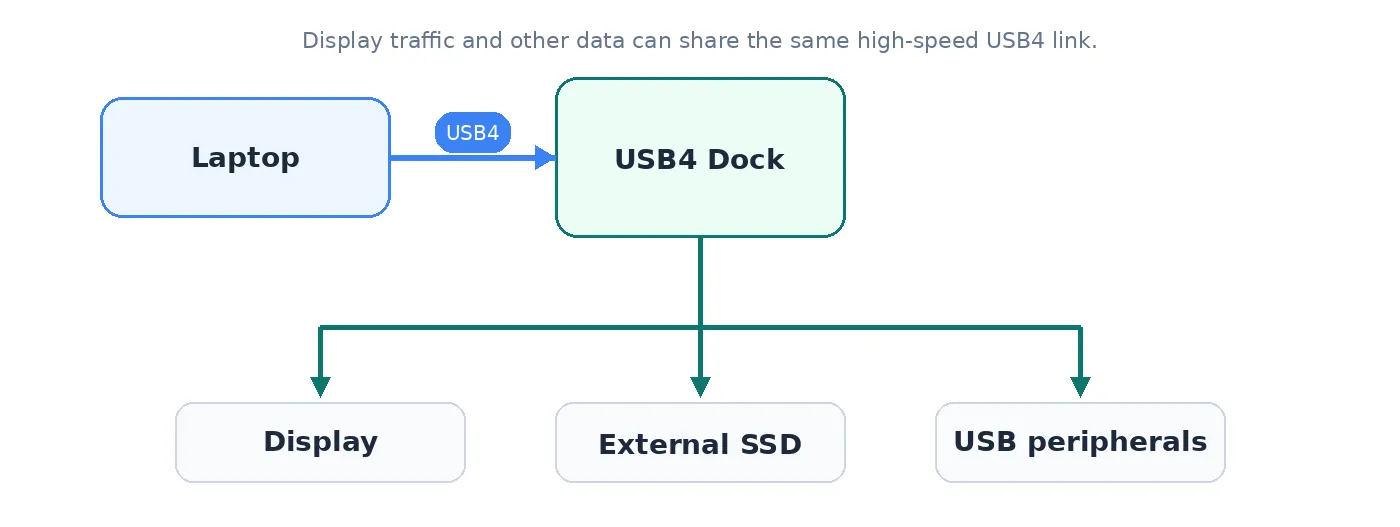
The link can carry display traffic and data traffic simultaneously, with the allocation depending on the workload and available bandwidth.
And where does Thunderbolt fit?
Thunderbolt is another high-speed interconnect technology that uses USB-C connectors.
Thunderbolt is particularly interesting because it combines high-bandwidth connectivity with support for multiple kinds of traffic, including display and PCIe-based devices.
DisplayPort is an important part of this story: Thunderbolt uses DisplayPort for video.
That means a Thunderbolt connection can effectively provide:
Thunderbolt connection → DisplayPort video → display
while simultaneously carrying other traffic.
This is one reason Thunderbolt docks can be so useful.
A single cable can connect a laptop to a dock, while the dock provides connections for:
- monitors
- USB peripherals
- Ethernet
- storage
- audio
- other devices
The laptop doesn’t need a separate physical cable for each of those connections.
Why not just use USB4 for everything?
Sometimes you can.
USB4 was designed partly around the same general idea: one high-speed USB-C connection capable of carrying multiple protocols and sharing bandwidth between them.
The USB-IF describes USB4 as being based in part on technology contributed by Intel’s Thunderbolt work, and it enables multiple simultaneous data and display protocols.
But USB4 and Thunderbolt are not simply interchangeable labels.
They have different specification and certification requirements, and particular products can support different combinations of capabilities.
This is why a laptop specification saying simply:
USB-C
is insufficient.
Even:
USB4
doesn’t necessarily tell you everything.
You need to know the actual speed and supported capabilities.
How much bandwidth does a display really need?
Now we can return to the original question.
A display connection needs enough bandwidth to transport the display’s required signal.
The amount depends mainly on:
Resolution
More pixels require more data.
1080p → 1440p → 4K → 5K/6K → 8K
Each increase raises the amount of image information.
Refresh rate
A 60 Hz display refreshes its image 60 times per second.
A 144 Hz display refreshes it 144 times per second.
All else being equal, doubling the refresh rate roughly doubles the amount of uncompressed image data that needs to be transported.
Colour depth
A display might use 8 bits per colour channel, 10 bits, 12 bits or more.
More bits allow more possible colour values and can be important for HDR and professional imaging.
Chroma format
Video can sometimes reduce bandwidth by representing colour information at lower resolution than brightness information.
This is described using terms such as 4:4:4, 4:2:2 and 4:2:0.
For computer text and desktop graphics, 4:4:4 is generally desirable because it preserves full colour resolution.
HDR
HDR, or High Dynamic Range, allows a display to represent a wider range of brightness and colour than conventional SDR.
HDR therefore introduces additional requirements beyond simply specifying resolution and refresh rate.
This is why “4K” isn’t enough
Consider two monitors:
4K 60 Hz
and
4K 240 Hz
Both are called “4K”.
But the second is asking the connection to transport roughly four times as many frames per second.
And consider:
4K 60 Hz, 8-bit SDR
versus:
4K 60 Hz, 10-bit HDR
Again, the display signal has different requirements.
So when evaluating a laptop’s display connectivity, don’t stop at:
“Does it support 4K?”
Ask:
“At what refresh rate, colour depth and feature set?”
What does DisplayPort 1.4 vs 2.1 actually mean?
We’ll go into the details in a later article, but the broad idea is straightforward.
Newer DisplayPort generations provide higher bandwidth and additional capabilities.
DisplayPort 1.4 provides a maximum link rate of 32.4 Gbps.
DisplayPort 2.x introduced substantially higher bandwidth, with the highest UHBR20 mode reaching 80 Gbps of link rate.
UHBR means Ultra-High Bit Rate. It refers to the higher-speed signalling modes introduced with DisplayPort 2.x.
But there is an important trap:
A newer DisplayPort version does not automatically mean that a particular device supports the maximum bandwidth associated with that version.
VESA’s current DisplayPort 2.1b certification allows products with different capability levels. Not every DP 2.1b device needs the highest UHBR rates because many displays don’t require them.
That’s why later articles will look at the actual capabilities rather than treating version numbers as simple rankings.
What about HDMI 2.1 and HDMI 2.2?
The same principle applies.
A newer HDMI specification provides additional capabilities and higher bandwidth, but the specification version alone isn’t necessarily a complete description of what a particular product supports.
The current HDMI 2.2 specification raises the maximum bandwidth to 96 Gbps and supports much higher-resolution and higher-refresh configurations.
But a buyer should ultimately ask:
What display configuration can this particular laptop actually drive?
rather than simply:
Does it say HDMI 2.2?
We’ll examine the HDMI and DisplayPort version numbers, encoding methods and bandwidth calculations in much more detail in the next article in this series.
Does DisplayPort give you a better picture than HDMI?
No — not inherently.
If HDMI and DisplayPort can both deliver the same digital signal to your display, there is no fundamental reason for one to produce a better image.
The important question is whether the connection can carry the required signal.
For example, if you want:
4K, 144 Hz, HDR, 10-bit colour
and one connection supports that combination while another doesn’t, then the first connection is obviously the better choice for that setup.
But that doesn’t mean its pixels are somehow higher quality.
It means:
It can deliver the signal you want.
This distinction is important because it prevents the common mistake of treating standards as a simple hierarchy.
So which connection should you use?
For many people, the answer is surprisingly simple.
If your laptop and monitor both support the display you want
Use whichever connection is convenient.
If you’re connecting to a television
HDMI is usually the natural choice because televisions and home-theatre equipment are heavily based around HDMI.
If you’re building a high-end PC monitor setup
DisplayPort is often particularly attractive because of its PC-oriented ecosystem, high-bandwidth capabilities and multi-stream features.
If you’re using a modern laptop with USB-C
Check what the USB-C port actually supports.
It might provide:
- DisplayPort Alt Mode
- USB4 with DisplayPort tunnelling
- Thunderbolt
- HDMI Alt Mode
- some combination of these
- or no display output at all
If you’re using a dock
Pay attention to the capabilities of both ends of the connection.
A laptop may have an extremely capable Thunderbolt or USB4 port, but the dock, cable and displays can all introduce their own limitations.
A useful mental model
When you encounter a laptop specification such as:
USB-C — Thunderbolt 4 — DisplayPort 1.4
don’t think of those as three competing names.
Think of them as different layers of the system.
USB-C
The physical connector.
Thunderbolt 4
The high-speed interconnect using that connector.
DisplayPort 1.4
The display technology being carried through the connection.
Similarly:
USB-C — DisplayPort
means that the USB-C connection can carry DisplayPort directly using DisplayPort Alt Mode.
And:
USB-C — HDMI
could potentially mean HDMI Alt Mode, although you should check the manufacturer’s documentation because USB-C-to-HDMI connections can also involve conversion.
This layered way of thinking makes modern laptop connectivity much less mysterious.
What should you actually look for when buying a laptop?
Don’t start by asking:
“What’s the newest display standard?”
Start with:
1. What displays will I use?
One 1080p monitor?
One 4K/60 monitor?
A 4K/144 gaming display?
Two 4K monitors?
An 8K display?
Your answer determines how much bandwidth you actually need.
2. What refresh rate do I need?
60 Hz is sufficient for many office and productivity setups.
Higher refresh rates become increasingly valuable for gaming and can also make general interaction feel smoother.
3. Do I need HDR or high colour depth?
If you’re doing professional photo/video work or using a high-end HDR display, this can affect the required display bandwidth and capabilities.
4. Do I want multiple displays?
If so, investigate the laptop’s actual multi-display capabilities rather than simply counting video connectors.
5. Will I use a dock?
If yes, Thunderbolt or a sufficiently capable USB4 implementation may be much more valuable.
6. What does each USB-C port actually support?
Don’t assume all USB-C ports are equivalent.
7. Do I need HDMI specifically?
If you frequently connect to TVs, projectors or conference-room equipment, having physical HDMI can be very convenient.
The bigger picture
Modern display connectivity looks complicated because several generations of technology have converged.
HDMI and DisplayPort started from somewhat different environments.
USB-C provided a small, reversible connector capable of carrying multiple kinds of signals.
USB4 turned that into a high-speed shared transport capable of carrying multiple protocols simultaneously.
Thunderbolt provides another highly capable transport built around USB-C and capable of carrying display and other high-performance traffic.
Meanwhile, displays have become dramatically more demanding.
4K is no longer exotic. High-refresh displays are common. HDR is increasingly widespread. Professional displays can reach 5K, 6K and 8K resolutions.
So the standards have had to evolve too.
But there is a reassuring conclusion:
You don’t need to understand every standard to buy the right laptop.
You just need to work backwards from the display you want to use.
Ask:
What resolution?
What refresh rate?
What colour/HDR requirements?
How many displays?
Direct connection or dock?
Then check whether the laptop’s particular ports can provide those capabilities.
The impressive-looking number isn’t necessarily the important one.
A laptop with Thunderbolt 5 might be overkill for someone using one 4K/60 monitor.
A humble HDMI port might be incredibly useful to someone who regularly connects to projectors.
And a USB-C port that looks identical to the one beside it might have completely different capabilities.
The connector is only the beginning of the story.
What’s next?
The next article will go deeper into the two major display standards themselves:
HDMI vs DisplayPort: Which Should You Use?
We’ll look at how they differ technically, why DisplayPort is particularly common in PCs and multi-monitor setups, why HDMI dominates consumer electronics, and whether there is actually a meaningful “winner” when both can drive the display you want.
After that, we’ll tackle the intimidating numbers — HDMI 1.4/2.0/2.1/2.2, DisplayPort 1.4/2.1b, FRL, UHBR, DSC and bandwidth — and translate them into things you can actually see and use.